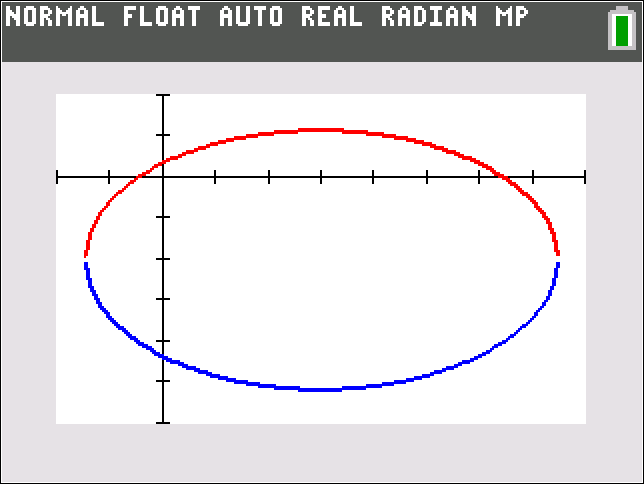
TI-84 Calculator
Graphing a Function
-
Press y=y equals to open the Y= editor.
-
Input the function.

-
Press windowWindow to input window settings.

-
Press graphgraph to display the graph.

-
To evaluate the function at a given value of x while the graph is displayed, press tracetrace and then input the given value of x. Then press enterthe Enter key.

Graphing a piecewise-defined Function with Two Pieces
-
Press y=y equals to open the Y= editor.
-
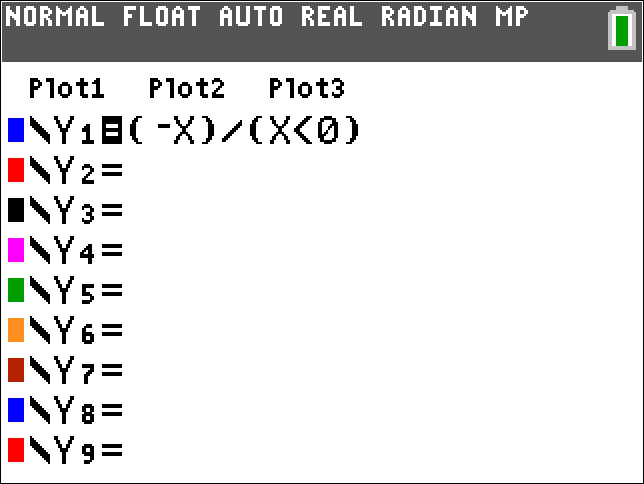
Input the two pieces of the piecewise-defined function separately by entering the functions enclosed in parentheses as numerators and the domains of the functions enclosed in parentheses as denominators, as follows. In the Y1=Y less than sub greater than one less than divided by sub greater than equals field, input a left parenthesis, the first function, a right parenthesis, a division bar, a left parenthesis, and then XX.

-
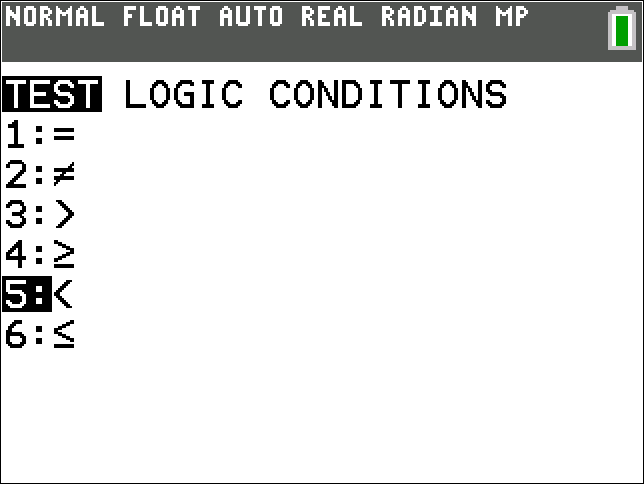
Press 2ndsecond, then mathmath to open the TESTTest menu. Scroll down to the desired inequality symbol for the domain of the first function.
-
Press enterthe Enter key, input the rest of the inequality to express the domain of the first function, and then input a right parenthesis.
-
In the Y2=Y less than sub greater than 2 less than divided by sub greater than equals field, repeat Steps 2, 3, and 4 to input the second piece of the piecewise-defined function and its domain.

-
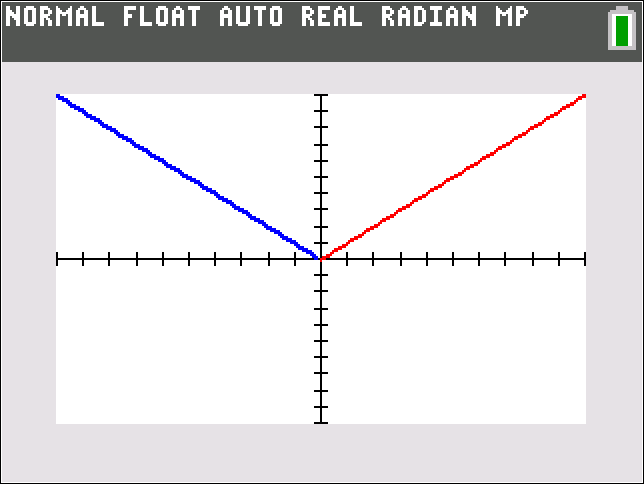
Press graphgraph to display the graph.
Graphing a piecewise-defined Function with Three Pieces
-
Press y=y equals to open the Y= editor.
-
Input the three pieces of the piecewise-defined function separately by entering the functions enclosed in parentheses as numerators and the domains of the functions enclosed in parentheses as denominators, as follows. In the Y1=y less than sub greater than 1 less than divided by sub greater than equals field, input a left parenthesis, the first function, a right parenthesis, a division bar, a left parenthesis, and then XX.
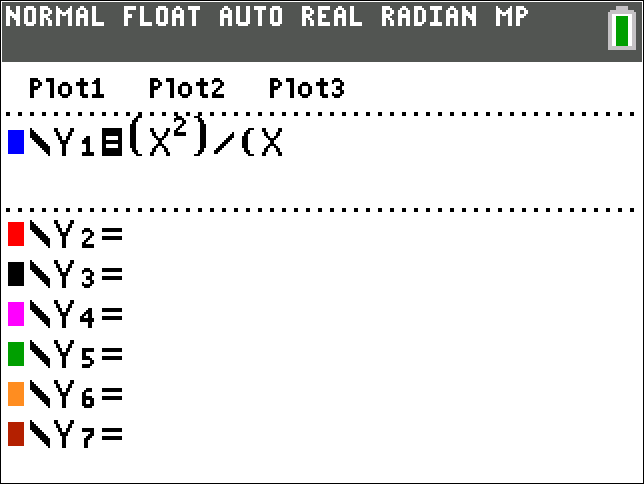
-
Press 2ndsecond, then mathmath to open the TESTTest menu. Scroll down to the desired inequality symbol for the domain of the first function.
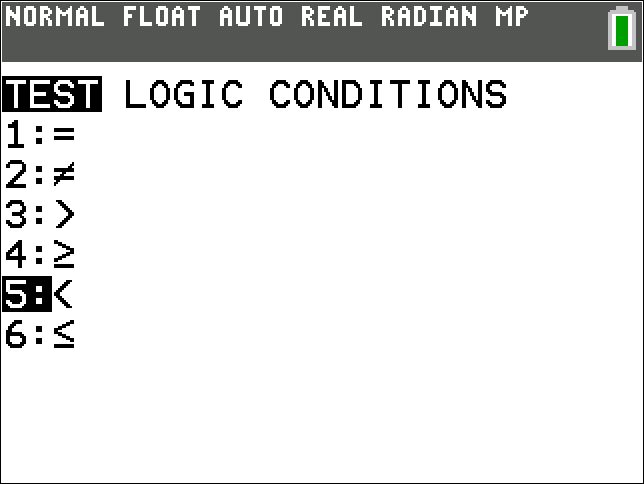
-
Press enterthe Enter key, input the rest of the inequality to express the domain of the first function, and then input a right parenthesis.
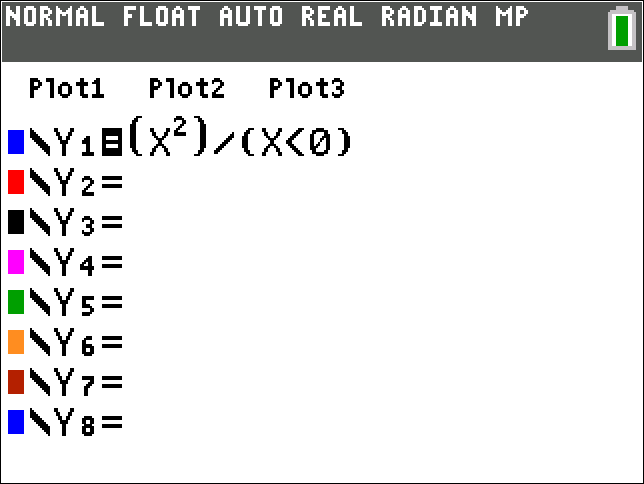
-
In the Y2=Y less than sub greater than two less than divided by sub greater than equals and Y3=Y less than sub greater than three less than divided by sub greater than equals fields, repeat Steps 2, 3, and 4 to input the second and third pieces of the piecewise-defined function and their domains. Break up any double inequality into two separate inequalities, and input each separate inequality enclosed in parentheses. For example, input as
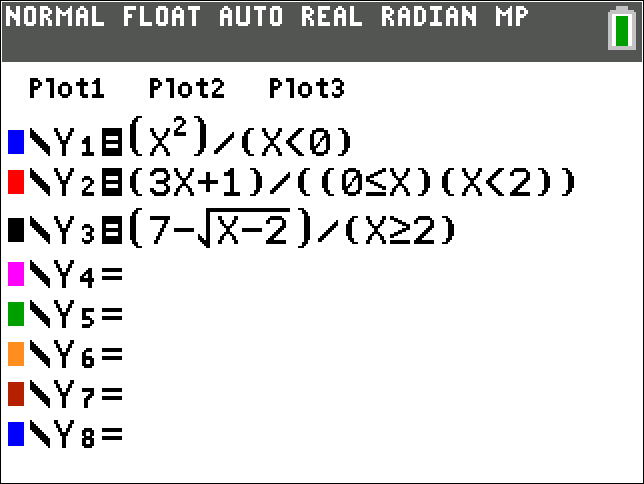
-
Press graphgraph to display the graph.
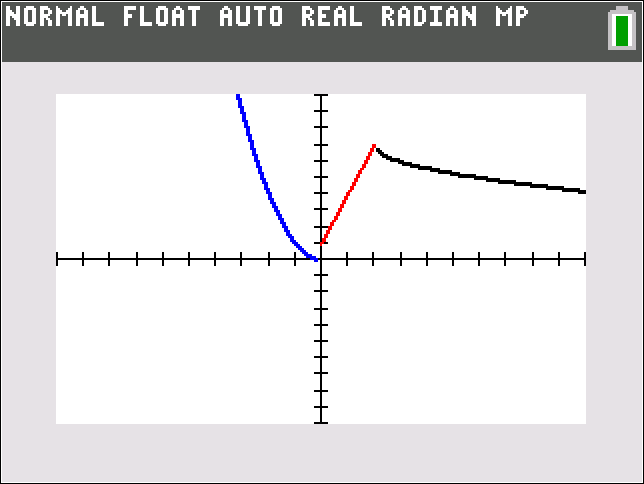
Graphing: Setting Window Parameters
-
Press y=y equals to open the Y= editor.
-
Input the function.
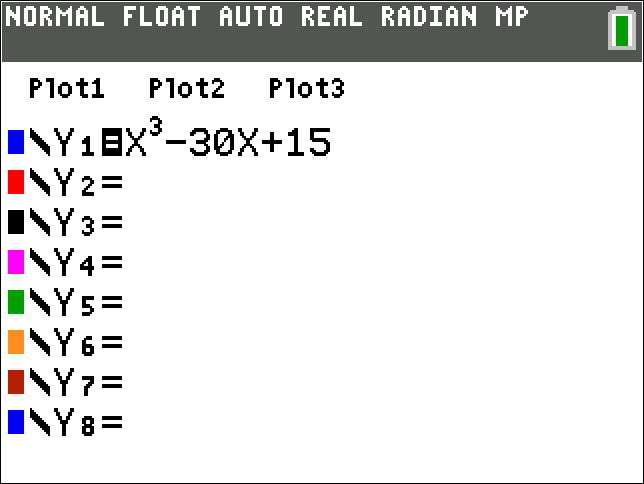
-
Press windowwindow to input window settings.
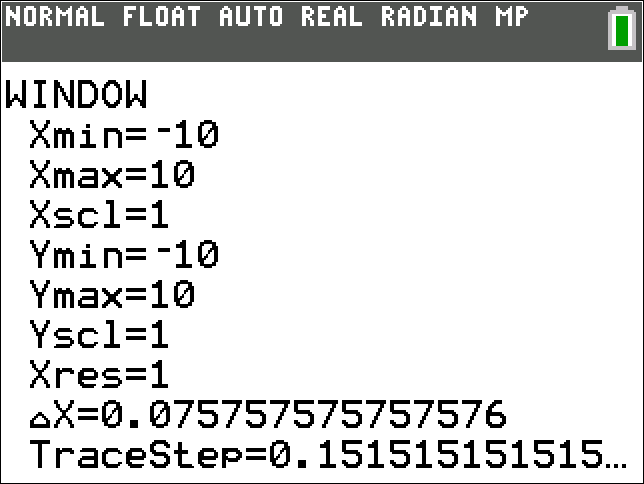
-
Press graphgraph to display the graph.
-
If necessary, repeat Step 3 to adjust the window settings to get a better view of the graph and then repeat Step 4 to display the graph.
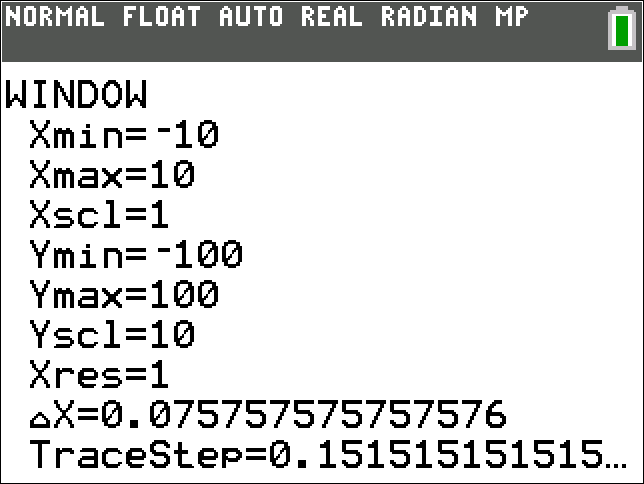

Graphing: Zooming In
-
Press y=y equals to open the Y= editor.
-
Input the function or functions that you wish to graph.
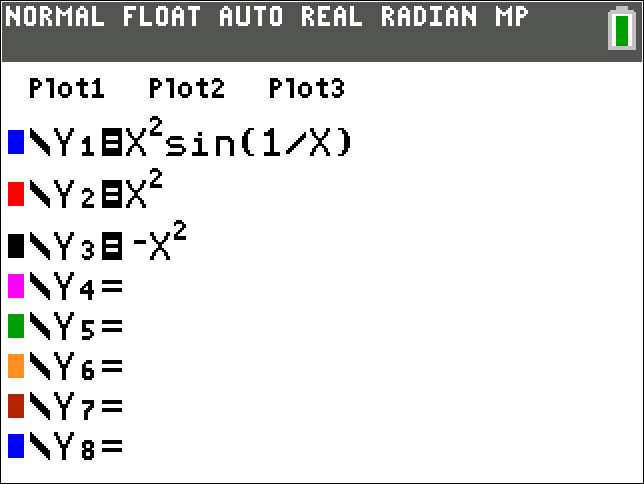
-
Press windowwindow to input window settings.
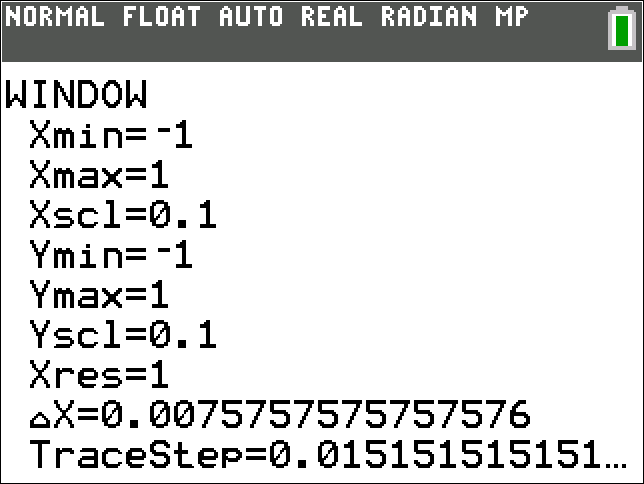
-
Press graphgraph to display the graph.
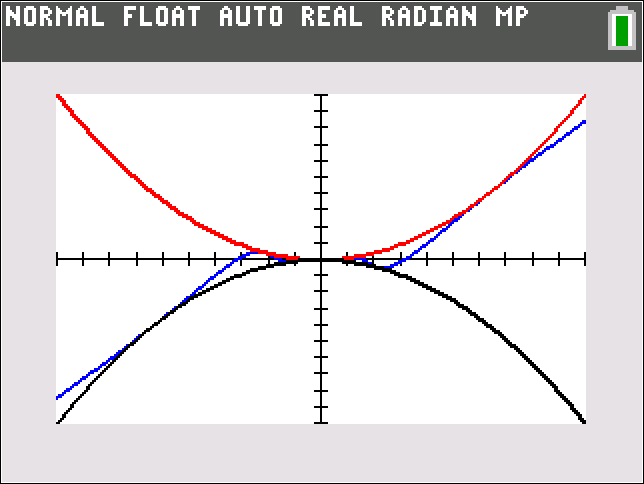
-
Press zoomzoom to open the ZOOMZOOM menu, and scroll down to 2:Zoom InTwo colon zoom In.
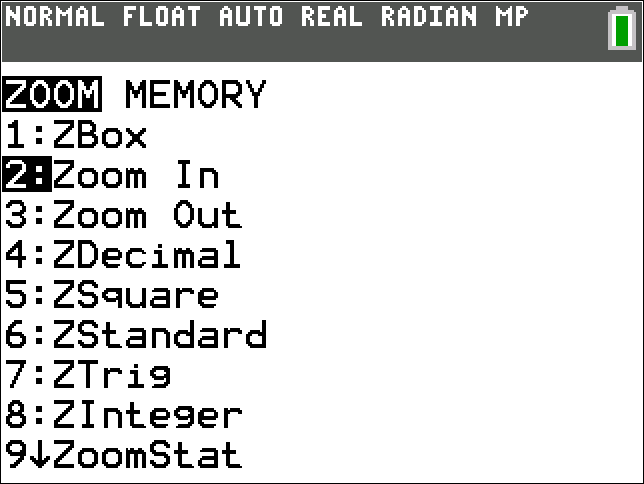
-
Press enterthe Enter key as many times as desired to zoom in on graph.
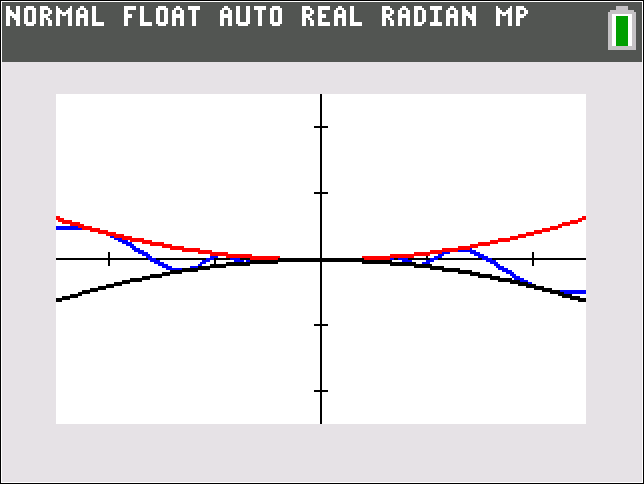
-
Press graphgraph to display the graph.
Least-Squares Curve Fitting
-
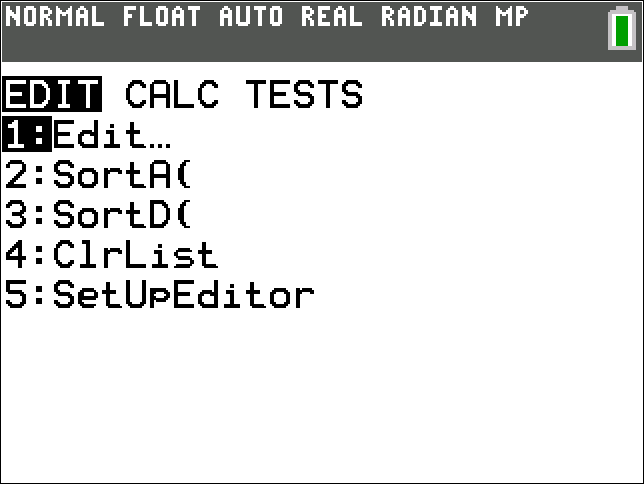
Press statstat to open the STAT EDITSTAT EDIT menu and select 1:Edit…One colon Edit… semicolon.
-
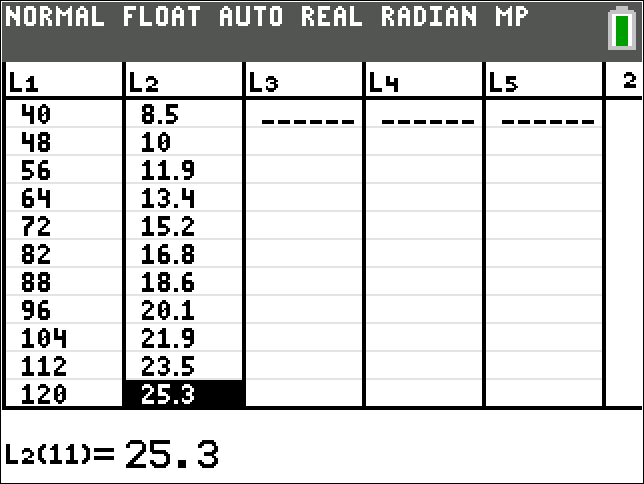
Press enterthe Enter key. Input the values of the independent variable in column L1L less than sub greater than One less than divided by sub greater than, and input the corresponding values of the dependent variable in column L2L less than sub greater than Two less than divided by sub greater than.
-
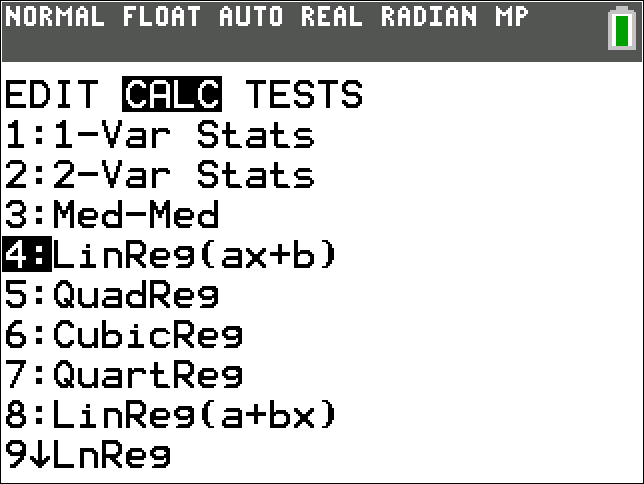
Press statstat, then ►► semicolon to open the STAT CALCSTAT CALC menu. Scroll down to 4:LinReg(ax+b)Four colon Linreg left parenthesis a x plus b right parenthesis.
-
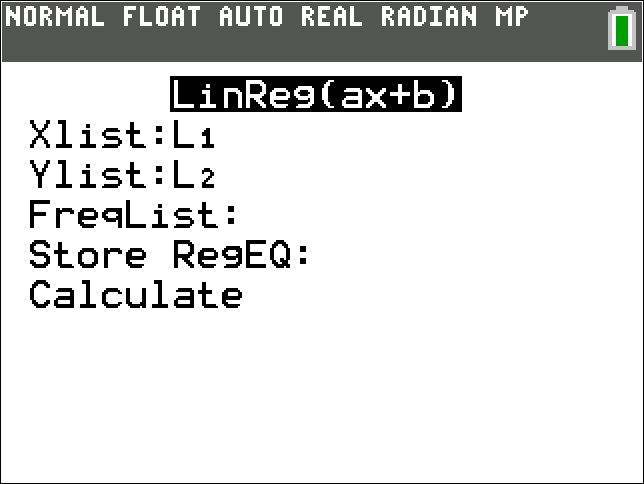
Press enterthe Enter key. Press 2ndsecond, then 1one to input L1L less than sub greater than one less than divided by sub greater than in the Xlist:Xlist colon field. Scroll down to the YlistYlist field and press 2ndsecond, then 2Two to input L2L less than sub greater than two less than divided by sub greater than. Scroll down to CalculateCalculate.
-
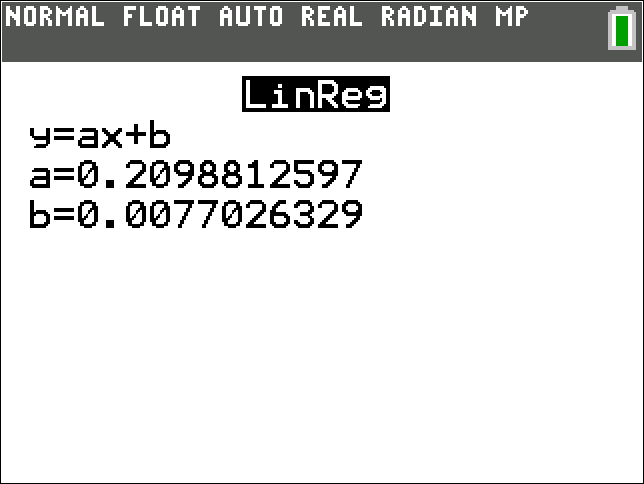
Press enterthe Enter key to calculate the slope aa and y-intercept bb of the best-fitting line for the data.
Visualizing Limits
-
Press y=y equals to open the Y= editor.
-
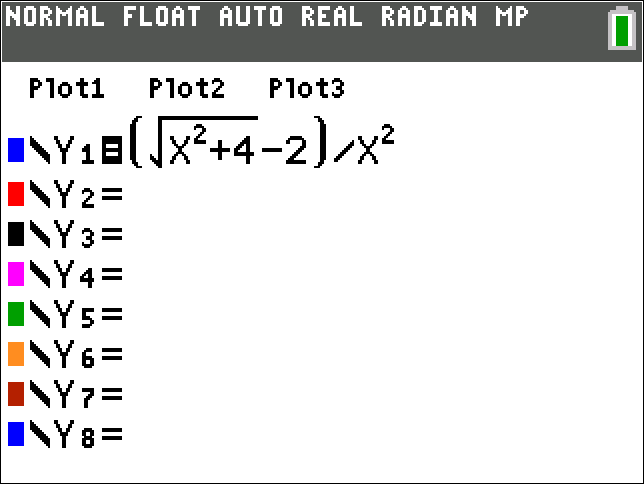
Input the function whose limit you wish to visualize.
-
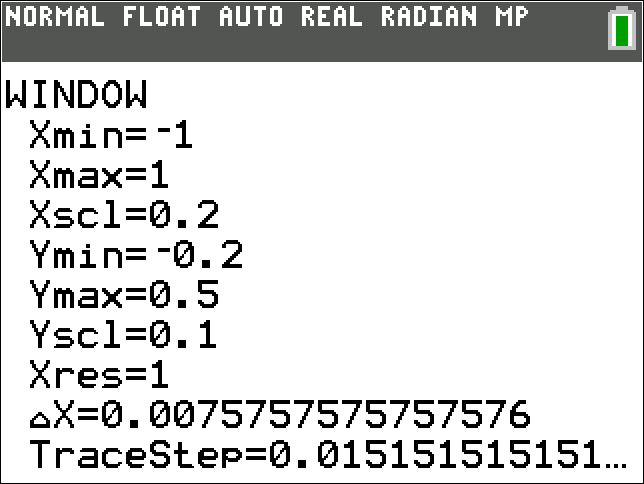
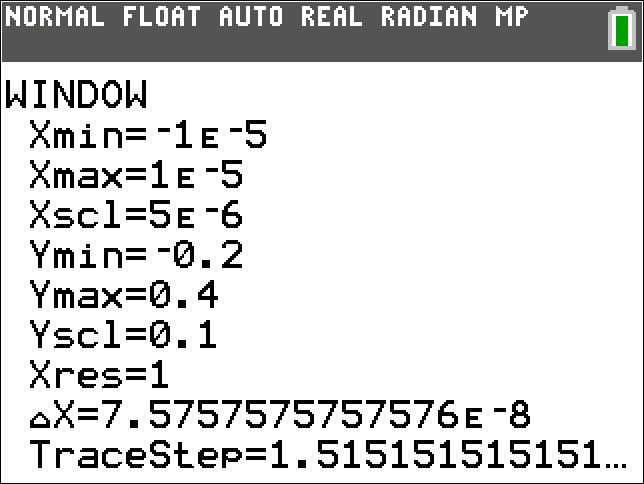
Press windowwindow to input window settings. Be sure the interval of x-values for the viewing window includes the value that the independent variable approaches in the limit.
-
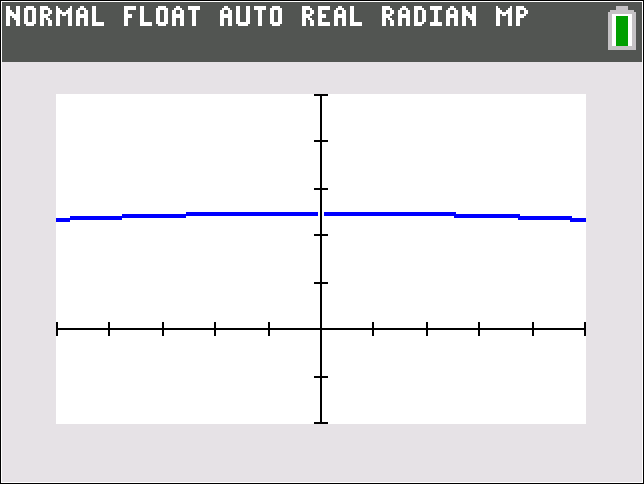
Press graphgraph to display the graph.
-
Press windowwindow to input new window settings.
-
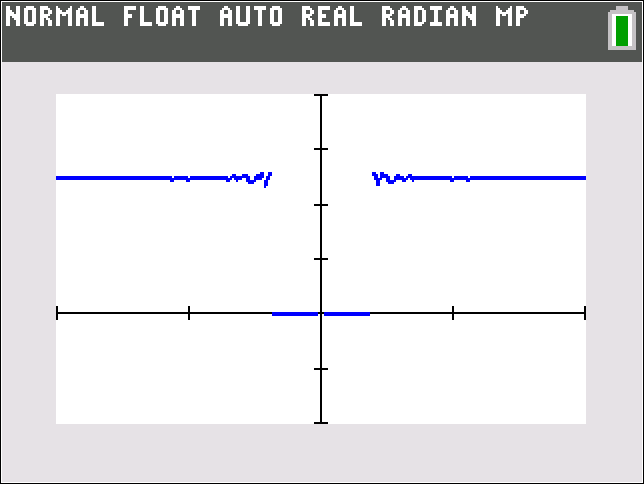
Press graphgraph to display the graph in the new viewing window. Use caution when trying to determine the value of a limit by inspecting graphs of a function. This may or may not lead to a correct guess for the limit, depending on the viewing window specified for each graph.
Predicting Limits
-
Press y=y equals to open the Y= editor.
-
Input the function whose limit you wish to predict.

-
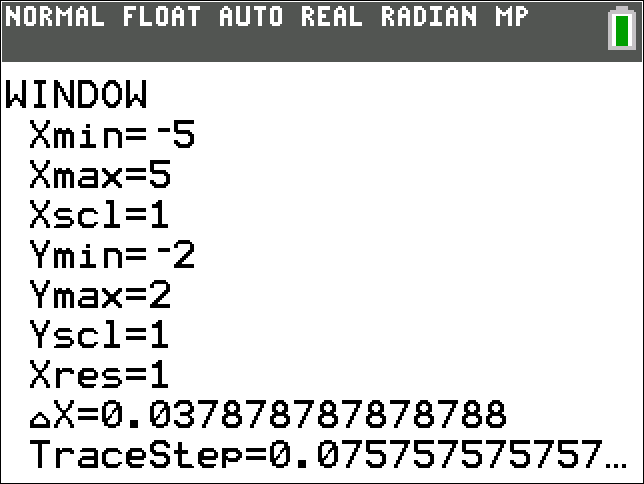
Press windowwindow to input the window settings.
-
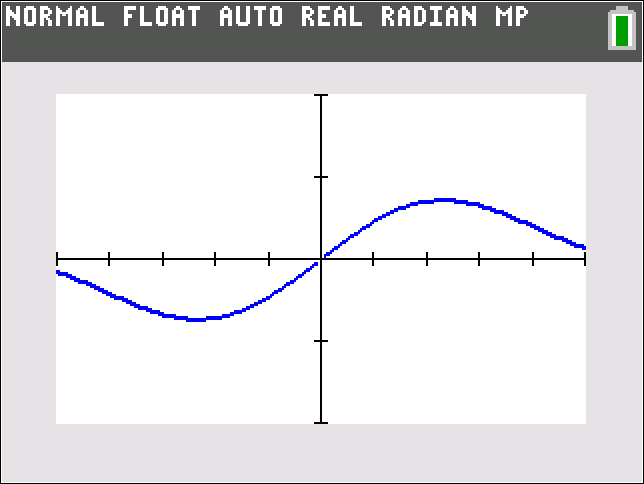
Press graphgraph to display the graph.
-
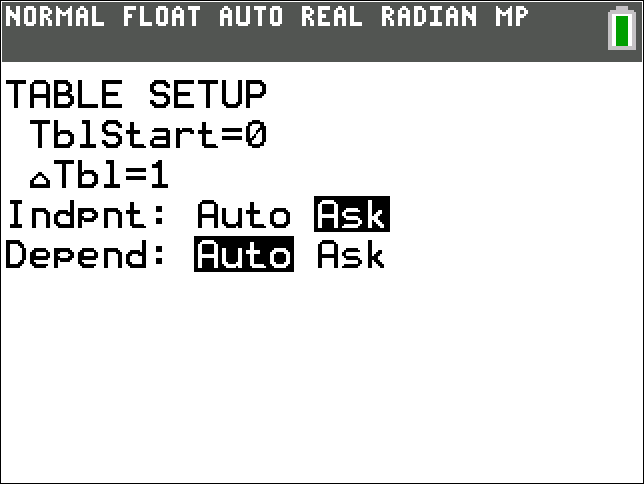
Press 2ndsecond, then windowwindow to display the TABLE SETUPTABLE SETUP screen. Scroll down to the Indpnt:independent colon field, press ►► semicolon to scroll to AskAsk, and press enterthe Enter key.
-
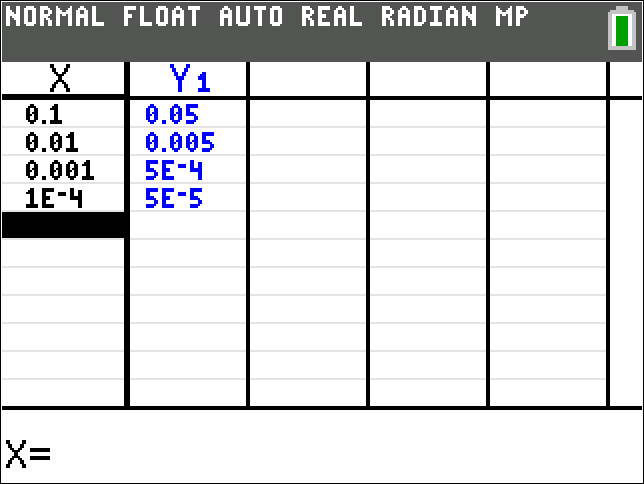
Press 2ndsecond, then graphgraph to display the table. Input values in the XX column that approach the value that the independent variable approaches in the limit. The calculator will generate corresponding values of the function in the Y1Y less than sub greater than one less than divided by sub greater than column.
Finding Roots of an Equation of the Form f(x)=0
-
Press y=y equals to open the Y= editor.
-
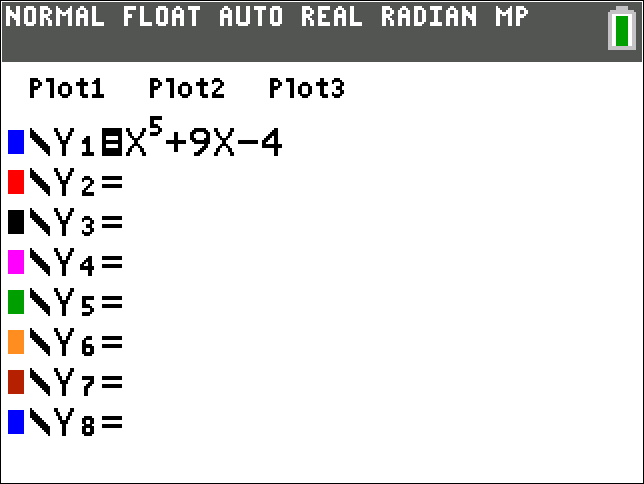
Input the function, with x as the variable.
-
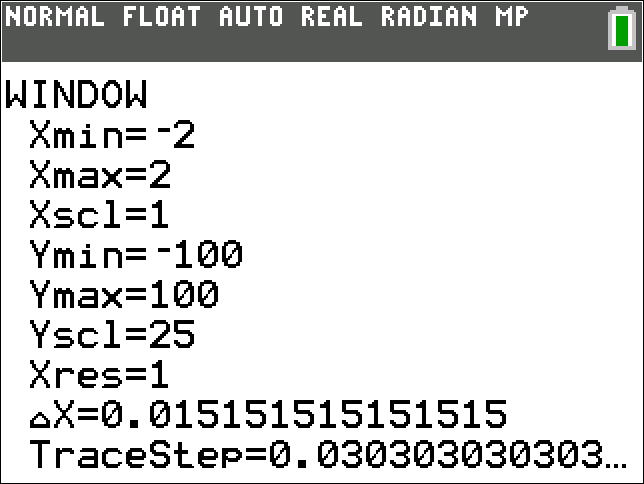
Press windowwindow to input window settings.
-
Press graphgraph to display the graph.

-
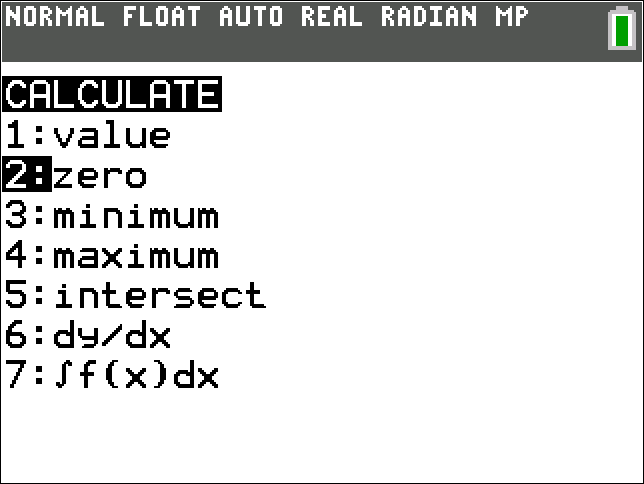
Press 2ndsecond, then tracetrace to open the CALCULATEcalculate menu, and scroll down to 2:zero2 colon zero.
-
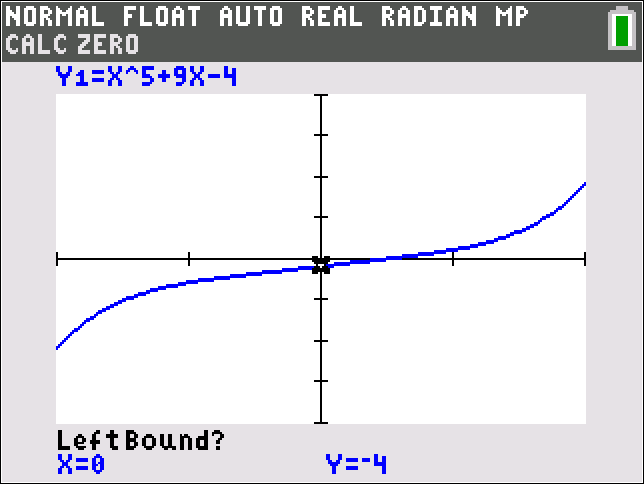
Press enterthe Enter key.
-
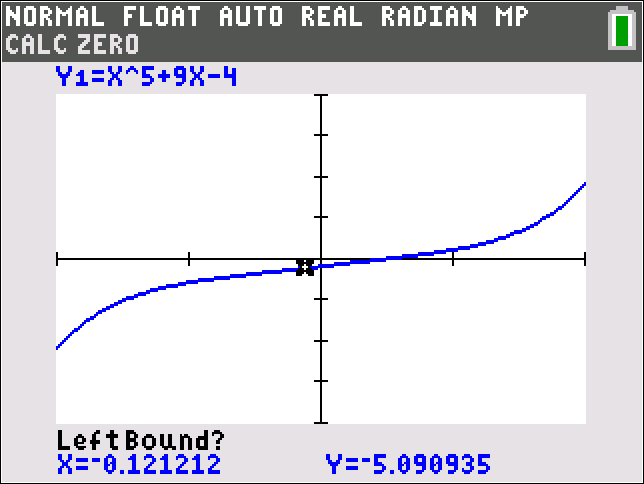
Press ◄◄ semicolon as many times as desired to move to any position to the left of the desired root, which is an x-intercept on the graph. This is the lower bound of the interval for x.
-
Press enterthe Enter key to set the lower bound chosen in Step 7.
-
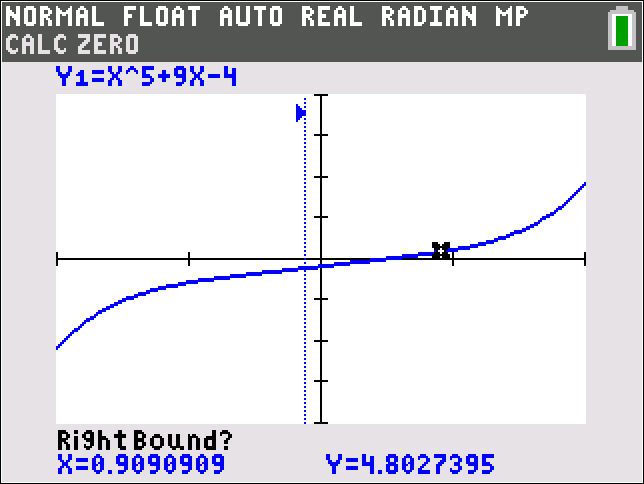
Press ►► semicolon as many times as desired to move to any position to the right of the desired root. This is the upper bound of the interval for x.
-
Press enterthe Enter key to set the upper bound chosen in Step 9.
-
Press ◄◄ semicolon as many times as desired to move to a position within the specified interval for x that is close to the desired root.
-
Press enterthe Enter key. The calculator will display the root of the equation that occurs within the specified interval for x.

Evaluating a Definite Integral
-
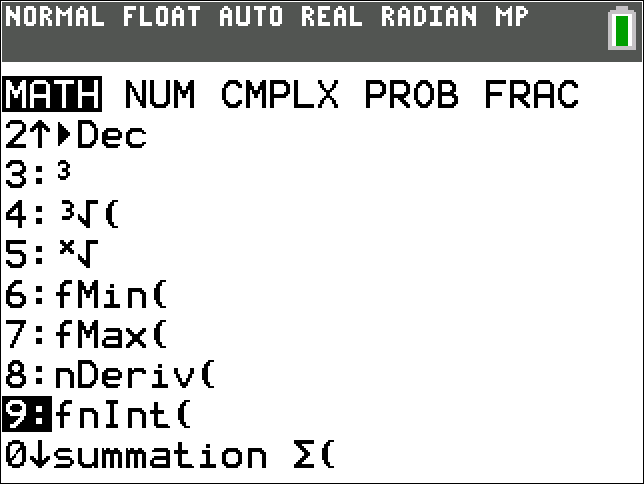
Press mathmath, then scroll to 9:fnInt(9 colon fn int left parenthesis and press enterthe Enter key.
-
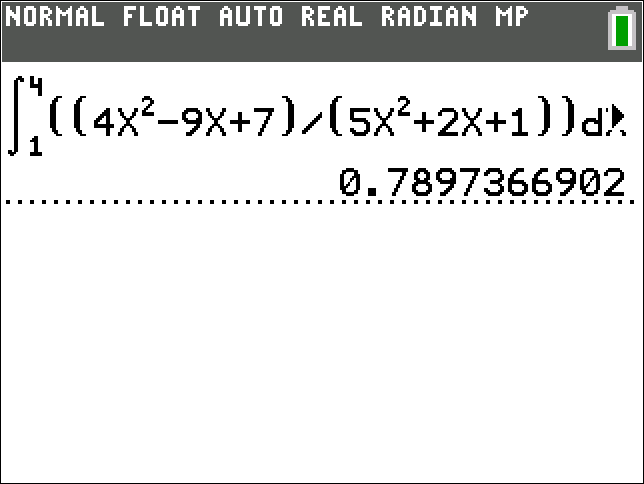
Input the lower limit of integration and press ▲▲ semicolon, input the upper limit of integration and press ►► semicolon, input the integrand function and press ►► semicolon, and then input Xx. Then press enterthe Enter key to evaluate the integral.
Graphing Parametrically Defined Curves
-
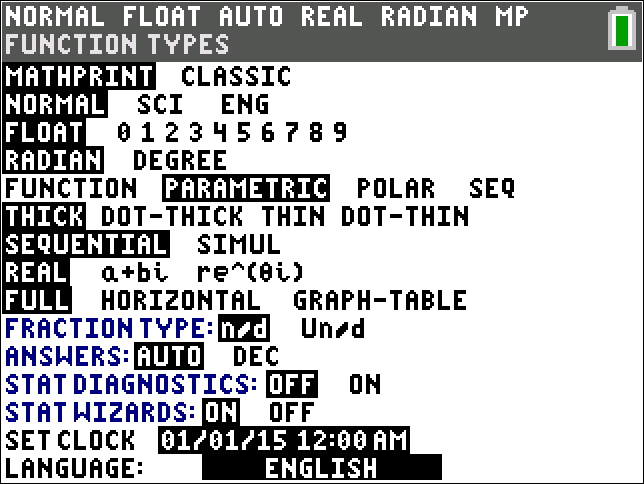
Press modemode, use the arrow keys to scroll to PARAMETRICParametric and press enterthe Enter key.
-
If necessary, change the AngleAngel mode to the units (RADIANRadian or DEGREEDegree) you want to use for t.
-
Press y=y equals to open the Y= editor.
-
Input the desired parametrized formulas for x and y into the X1T=X less than sub greater than one T less than divided by sub greater than equals and Y1T=Y less than sub greater than One T less than divided by sub greater than equals fields, respectively.
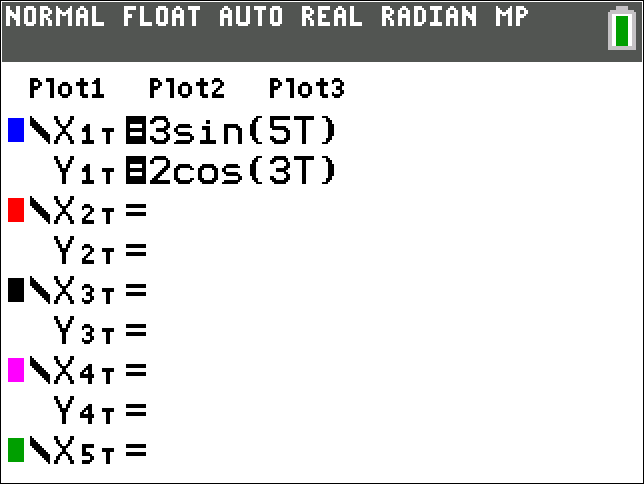
-
Press windowwindow to input window settings.
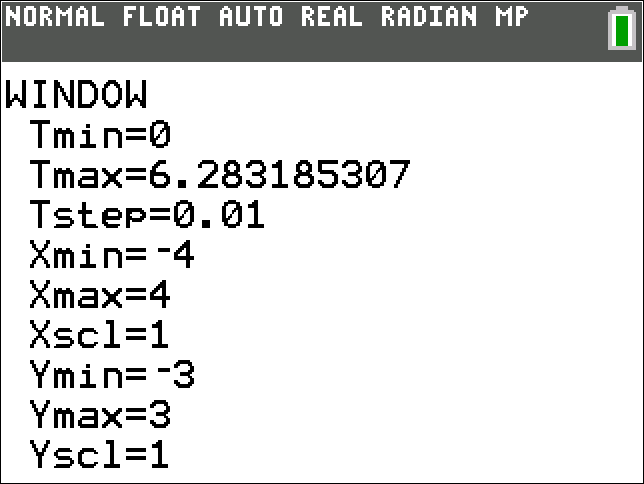
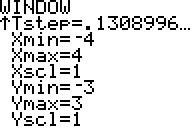
-
Press graphgraph to display the graph.
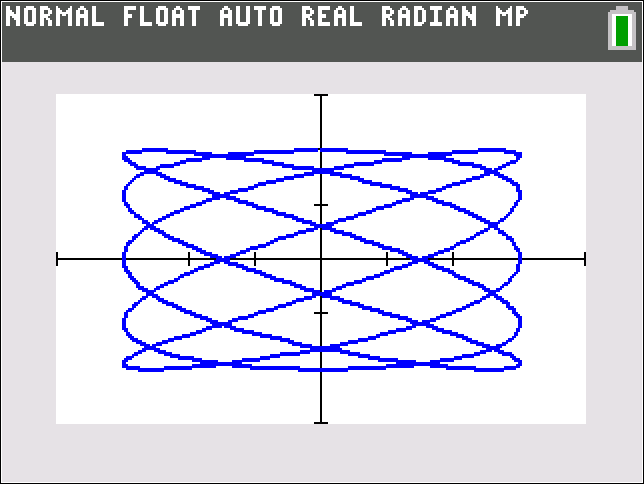
-
When you are finished graphing parametrically defined curves, press modemode, scroll down to FUNCTIONfunction, and press enterthe Enter key. This changes the graphing mode back to the default setting for function graphing.
Graphing Polar Equations
-
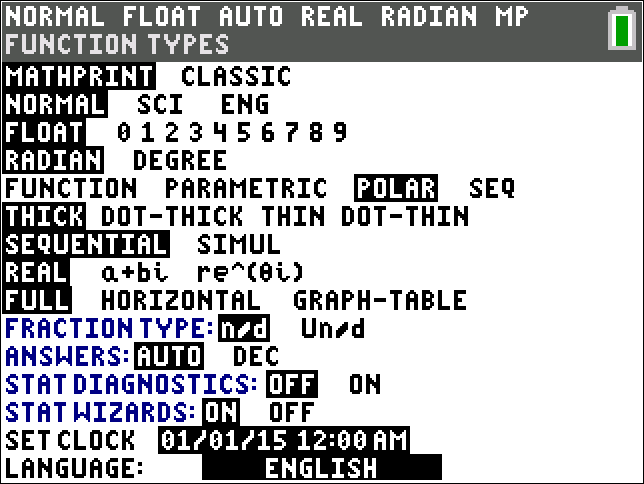
Press modemode, use the arrow keys to scroll to POLARpolar, and press enterthe Enter key.
-
If necessary, change the AngleAngel mode to the units (RADIANRadian or DEGREEDegree) you want to use for θ.
-
Press y=y equals to open the Y= editor.
-
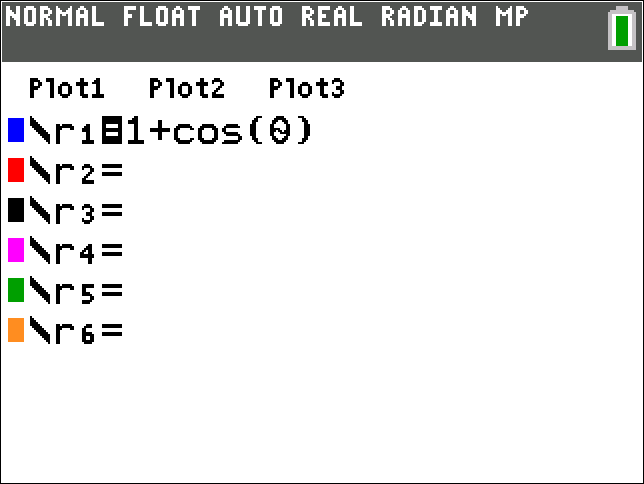
Input the expression for rr.
-
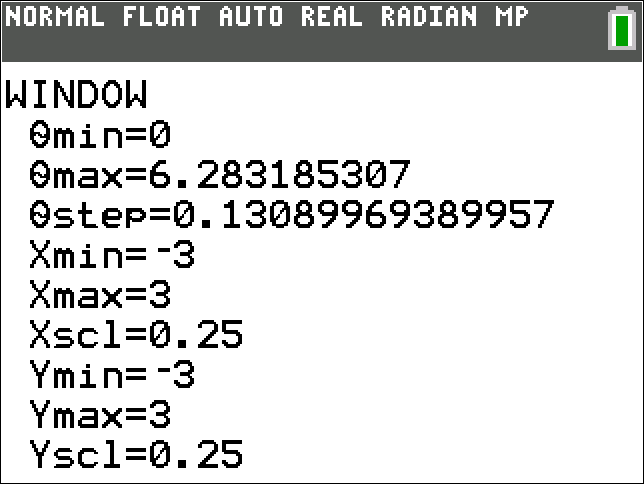
Press windowwindow to input window settings.
-
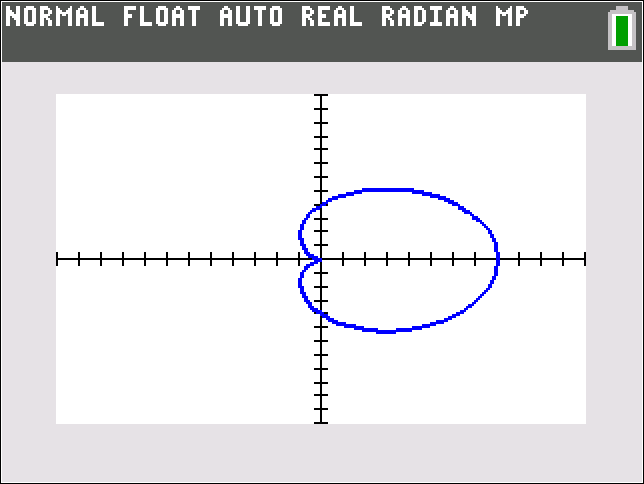
Press graphgraph to display the graph.
-
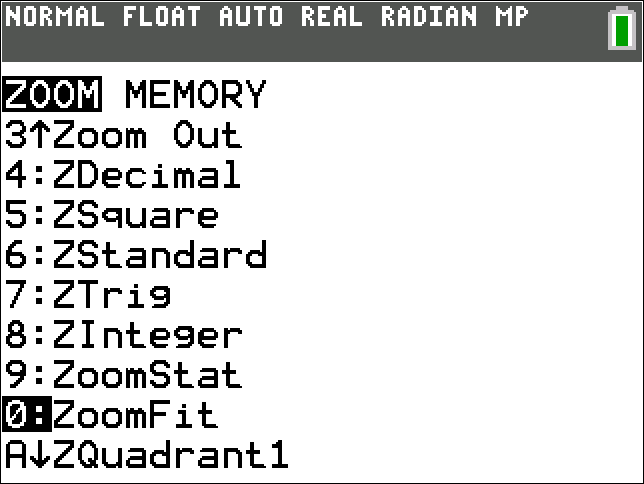
Press zoomzoom to open the ZOOMzoom menu, and scroll down to 0:ZoomFit0 colon zoom fit.
-
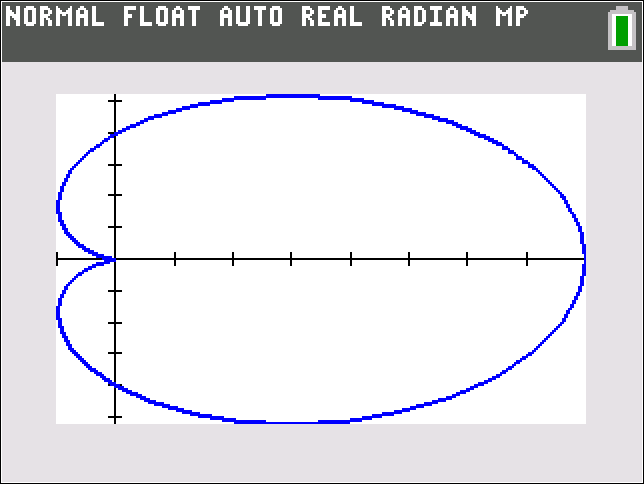
Press enterthe Enter key.
-
When you are finished graphing polar equations, press modemode, scroll down to FUNCTIONfunction, and press enterthe Enter key. This changes the graphing mode back to the default setting for function graphing.
Graphing Conic Sections in Cartesian Coordinates
-
Solve the Cartesian equation of the conic section for y.
-
Press y=y equals to open the Y= editor.
-
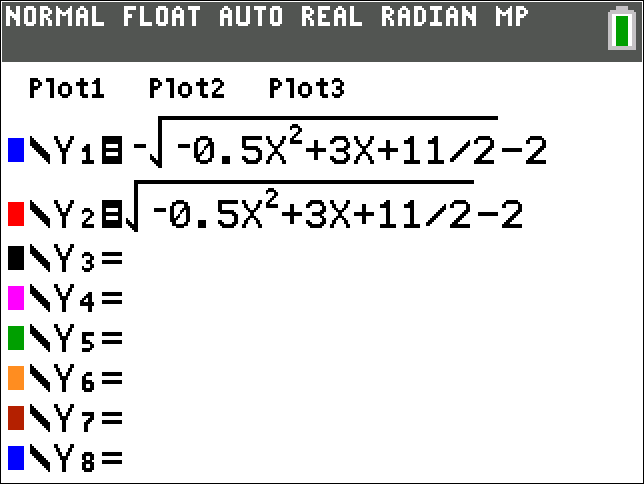
Input the solutions found in Step 1 into the Y1=y less than sub greater than one less than divided by sub greater than equals and Y2=y less than sub greater than two less than divided by sub greater than equals fields. (Note that if the conic section is a parabola that opens up or down, then there will be only one solution to input into the Y1=y less than sub greater than one less than divided by sub greater than equals field.)
-
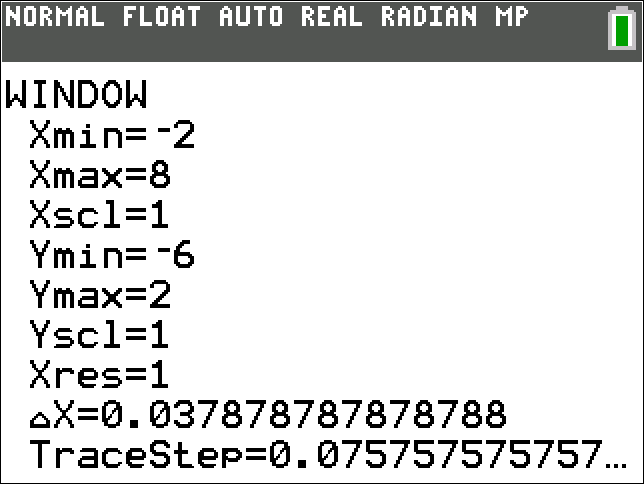
Press windowwindow to input window settings.
-
Press graphgraph to display the graph.